This post is a little different from my ongoing series on Better Digital Life. I will post the next part of that very soon.
In my post Ignorance is bliss, I talked about RSS feeds and how that helps me consume news. I said I will make a post about them, so here we go.
For those of you who don't know what an RSS feed is let me give you an idea, because yes most of the people have no clue. And the reason is because it's an old piece of technology, it is not as common as it used to be in the 2000s.
Okay, so what it is? Its full form is Really Simple Syndication. I know it tells nothing. Forget about the full form, in simple terms it's a follow button for the whole of the internet. For example, you subscribe to a YouTube channel, you get all their videos in your subscription feed. Now think you can do this for the whole of the internet.
Many of the websites provide their RSS feed that you can subscribe to, which is good enough for most people, but if you are tech savvy, you can turn anything into an RSS feed with a little bit of coding.
Now you have some understanding of it, the question then is "Why should you care about it?". And again I will have a callback to my Privacy is a Terrible Sales Pitch post in which I talked about the knowledge problem that people don't even have the knowledge that there's a better way to do something digitally. RSS feeds are a much better and cleaner way to consume news, blogs, newsletters etc.
The modern web experience is not only so much filled with ads, but also malware and viruses. Or as I like to call it, it's full of weeds.
And there's also another reason to use RSS feeds. As I have talked time and again, I'm not a big fan of social media or news. I want what I consume to be specific, and it gives me the ability to customize it the way I want.
Now let's talk about how to use it.
So for consuming anything you need the RSS feed links which sometimes end in .xml, .atom, .rss, or sometimes just /feed endpoint.
You will have to find these out for particular websites. For example, if you want the RSS feed link for The Indian Express, you just search for "The Indian Express rss feed links", and it will show you the page where it has RSS feed links for various categories.
And then you need an RSS feed reader. There are plenty of FOSS (Free and Open-source software) options available.
I particularly use a mobile app for this. The one I use is Capy Reader. It's an Android app. Since I currently use an Android phone, I'm mainly going to be focusing on it. For iOS I have two suggestions which I have earlier used, Feeeed and NetNewsWire.
Now let's get started with using Capy Reader. Here's the official Github page and here's the F-Droid link. But since many of you don't even know what these links are, here's the Play Store download link.
The first thing you need to do is install the app from wherever you find it comfortable.
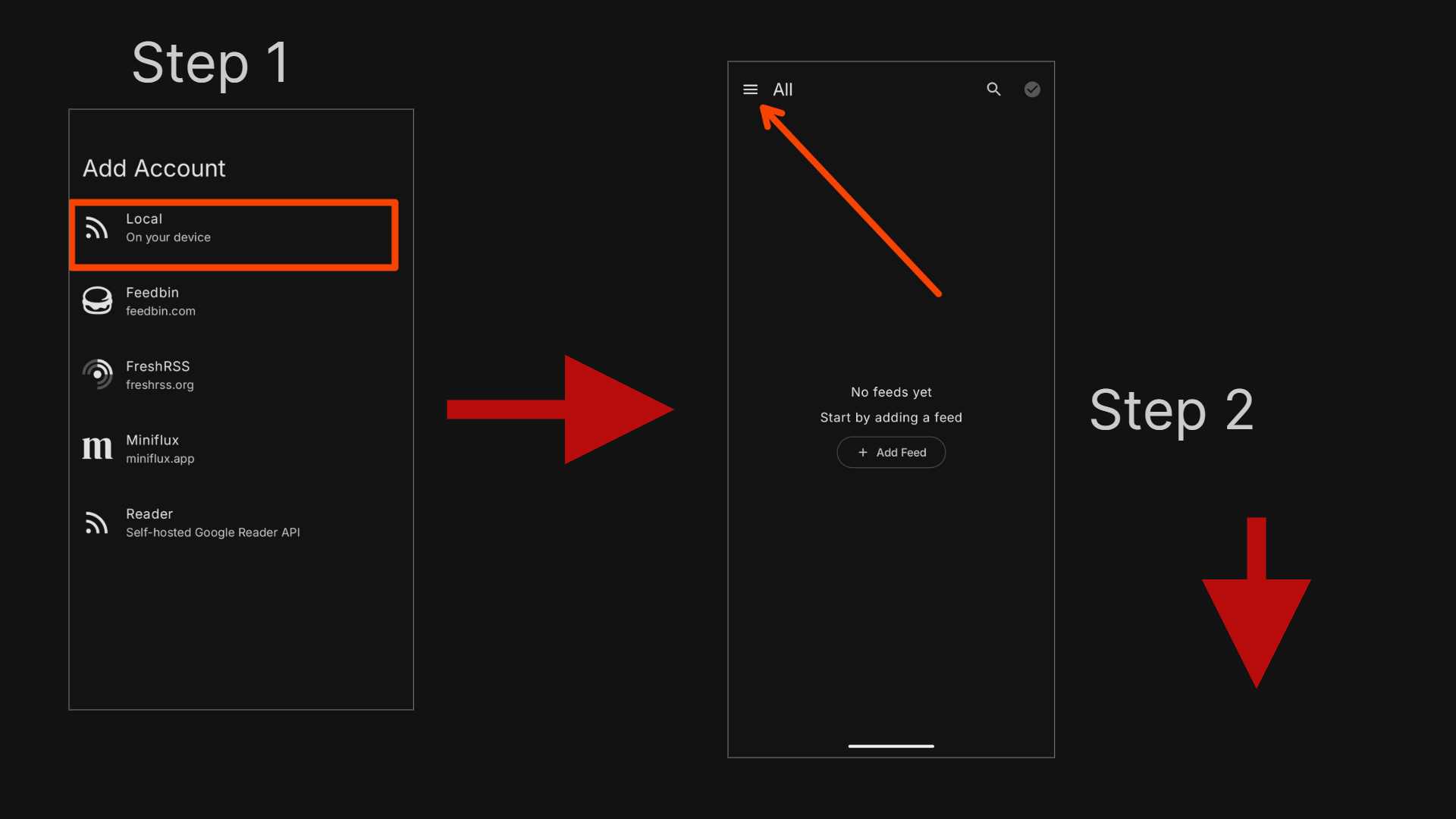
Step 1 & 2: Add account
When you open the app for the first time, it will ask you to add an account. Just select Local, on your device. You don't need any of the other options like Feedbin or Miniflux, those are for self-hosters. Once you do that, you land on a clean empty screen that says "No feeds yet". You'll see an "+ Add Feed" button, that's where you start. But we are going to configure some setting first.
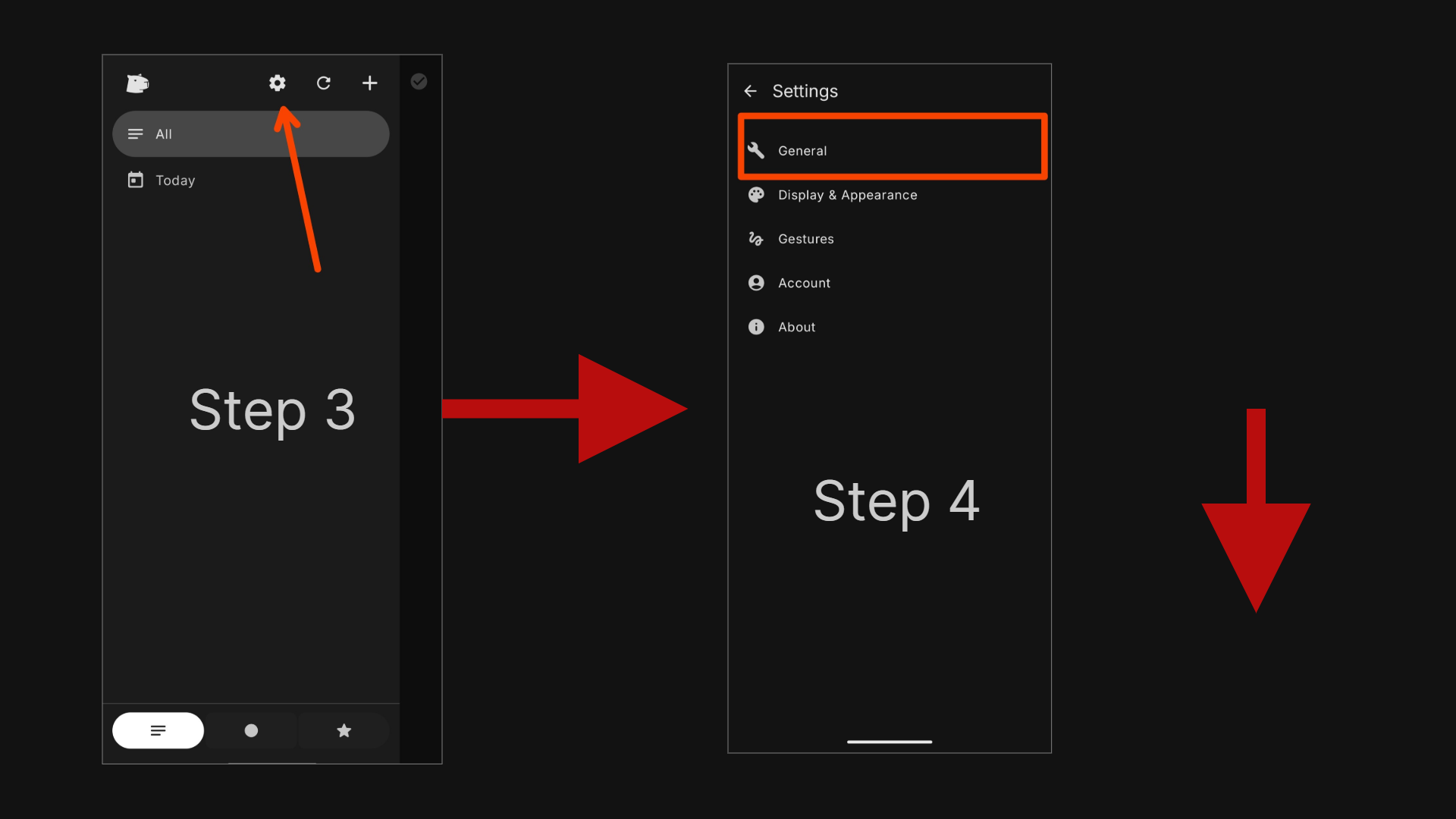
Step 3 & 4: Get into Settings
Tap the gear(settings) icon at the top. It opens up the Settings screen. Go into General first.
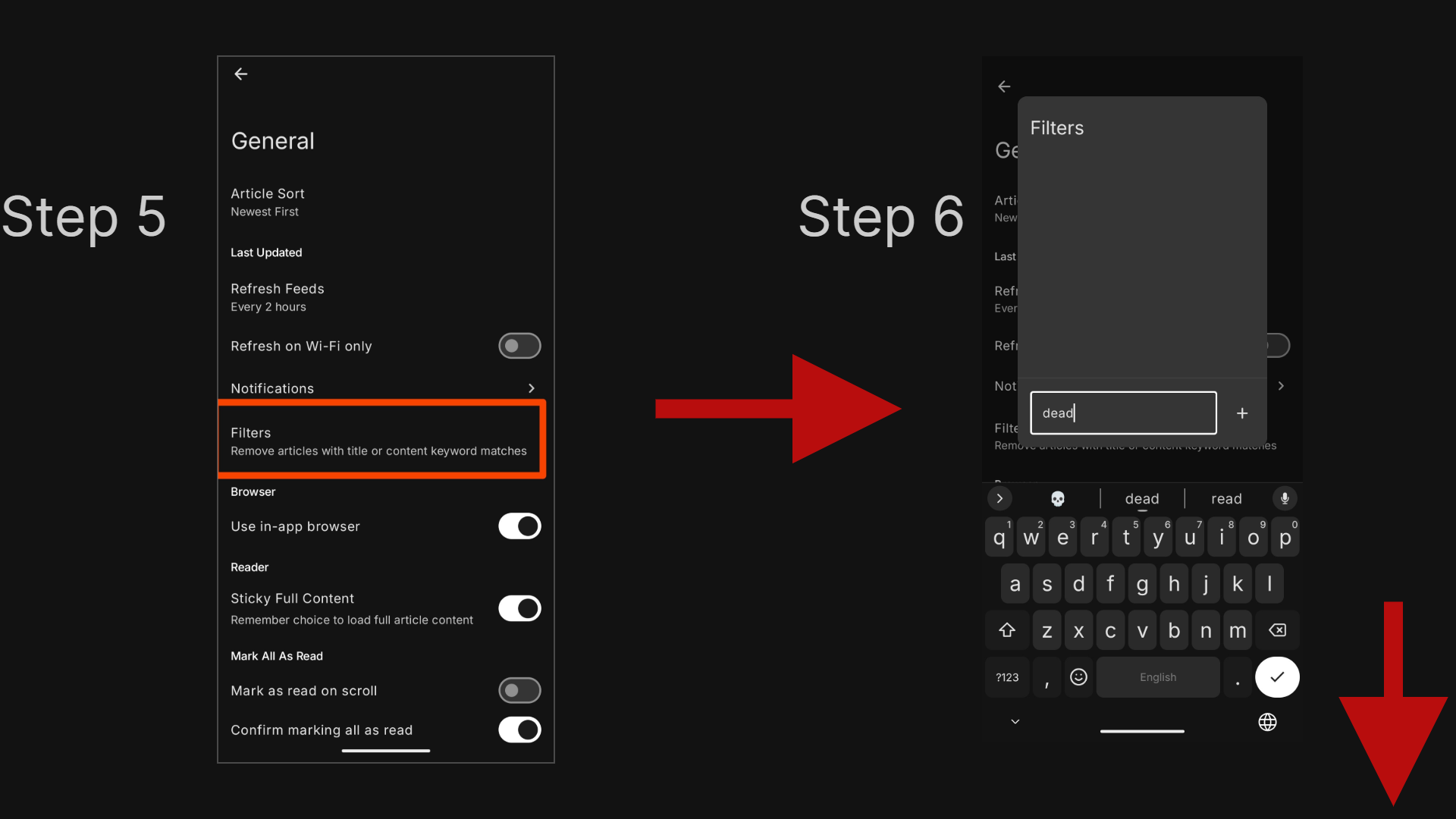
Step 5 & 6: General settings and Filters
This is where the good stuff is. You can set how often the feeds refresh, turn on in-app browser (I'd recommend keeping it on), and enable Sticky Full Content which basically remembers your choice to load the full article. The one I want to specifically point out is Filters. You can add keywords here and Capy will automatically remove any article that matches those keywords from your feed. So if you are tired of seeing a specific word or topic, just filter it out. I have around 40 filtered keywords.
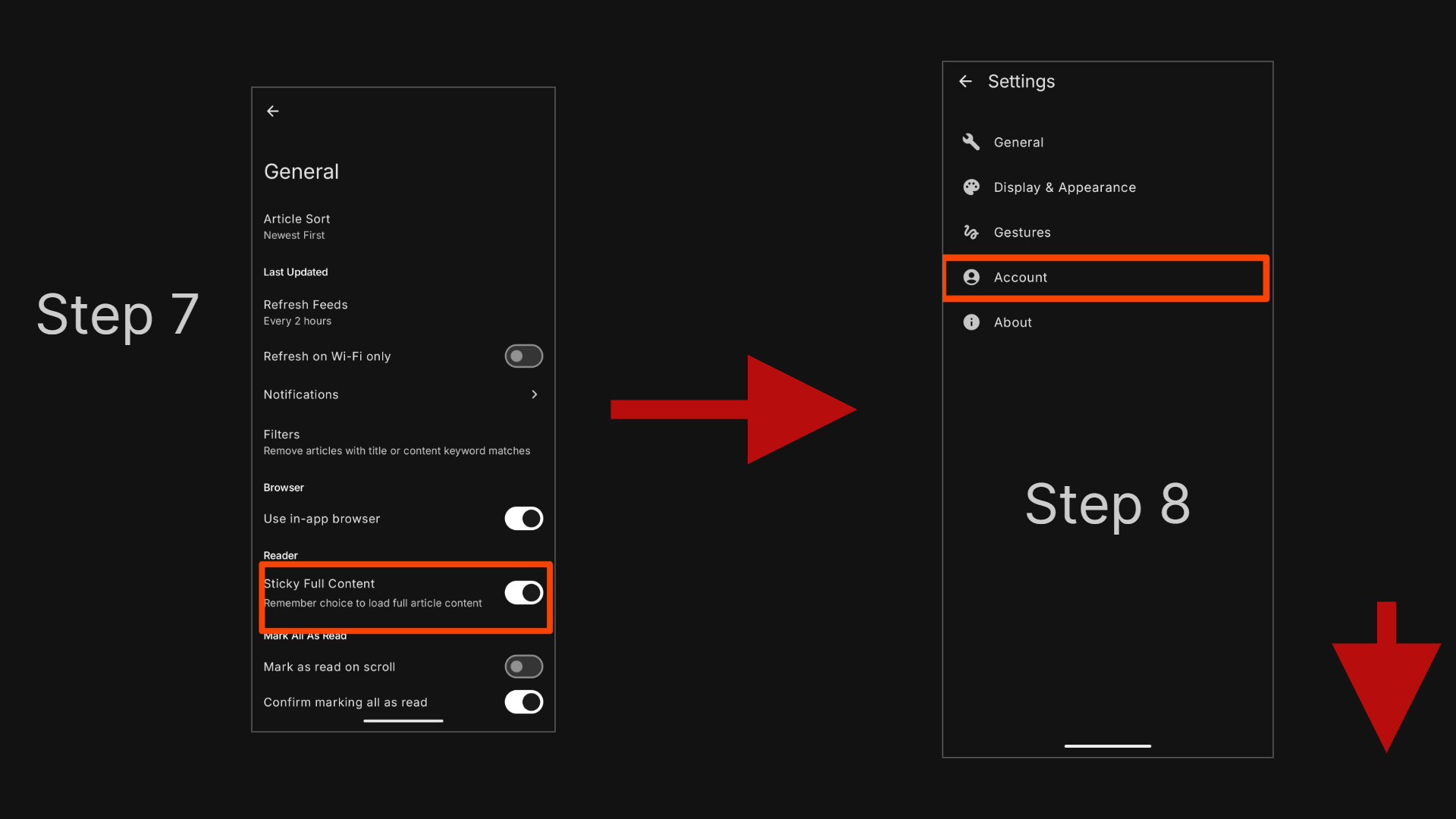
Step 7 & 8: More settings and Account
Back in General you can also see the Sticky Full Content toggle more clearly here. And from the main Settings screen, go into Account, that's where the import and export options live.
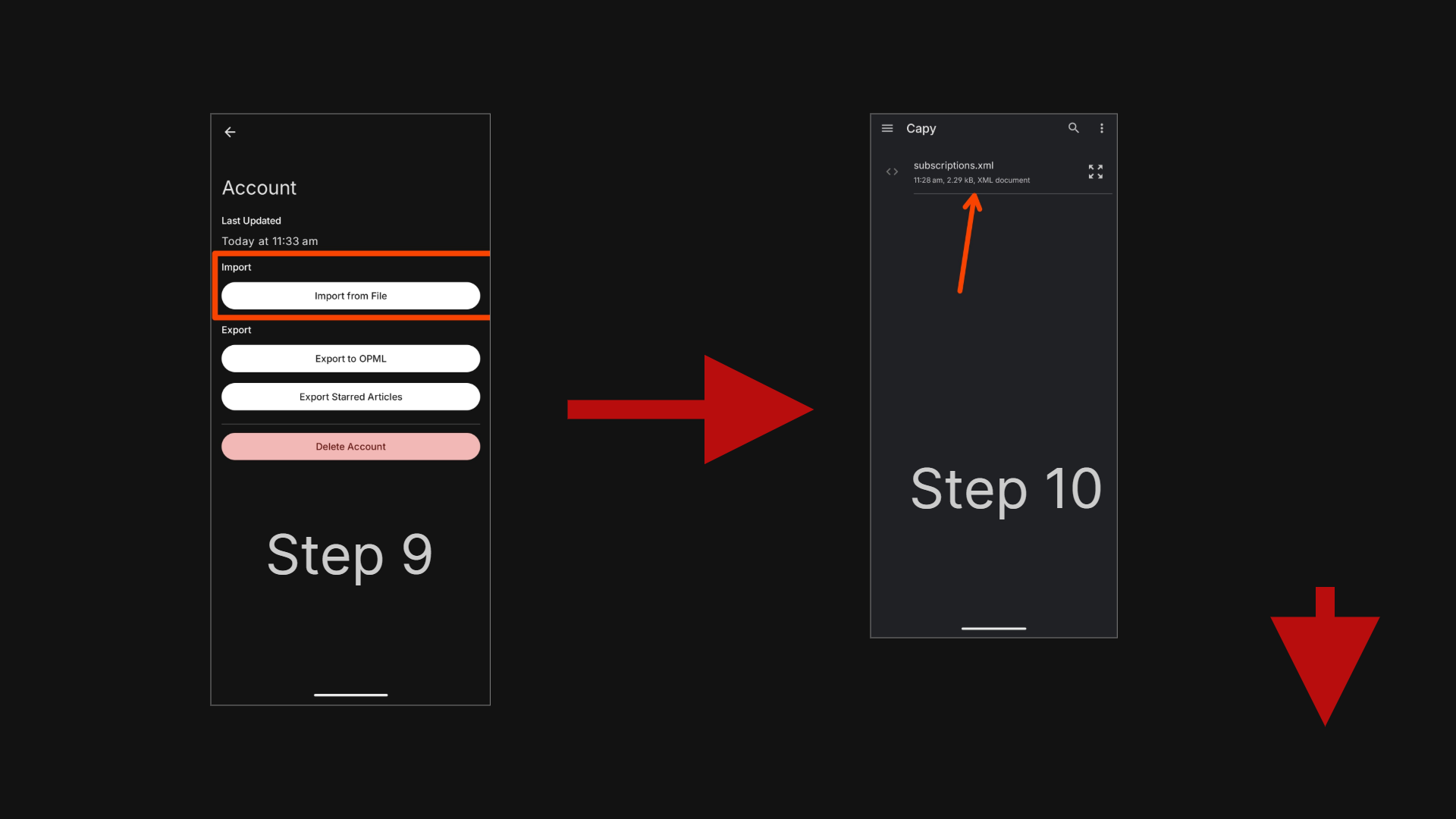
Step 9 & 10: Import your feeds
Now this is optional but very useful. If you have an OPML file, which is basically a file that contains all your RSS feed subscriptions, you can import it directly. Tap "Import from File", select your subscriptions.xml or .opml file, and you're done. All your feeds come in at once, no need to add them one by one. I have provided you my current subscriptions.xml file, which you can download by clicking here. This is for you to explore, remove, add or do whatever.
And that's it. Your feed is now set up and ready to go.
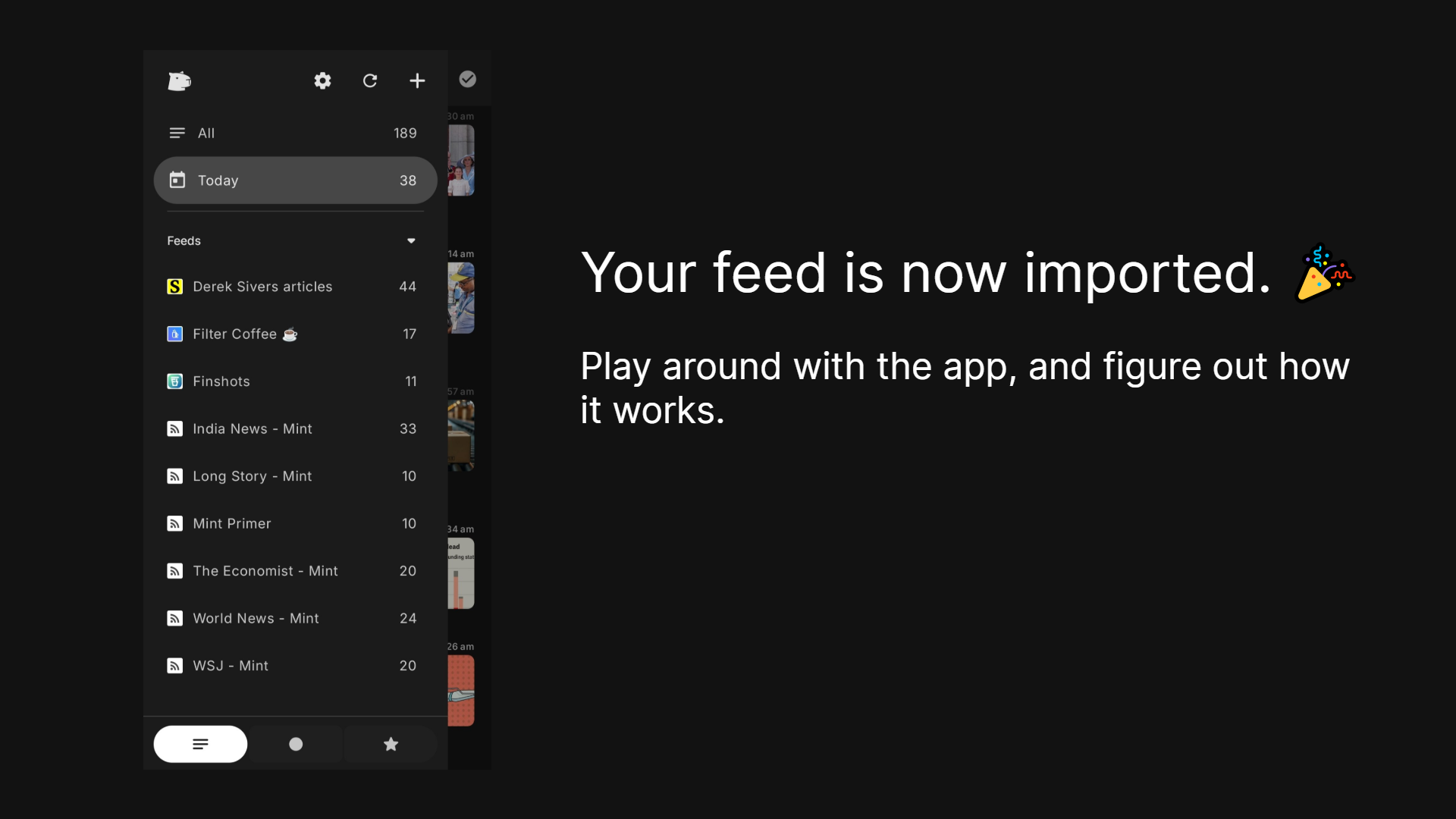
Within a few minutes you have a clean, ad-free feed of exactly the content you actually want to read, with no algorithm deciding it for you.
If you have been someone who mindlessly scrolls through news apps or social media just to stay updated, I'd really encourage you to give this a shot. It genuinely changes how you consume content on the internet. It's calmer, it's cleaner, and you're in control of what you see.
Try it out. As always, reach out to me if you need any help.
Bye.
PS: Since I have spent most of my time creating these screenshots, I didn't give much time to editing this post. It's bound to have grammatical and other mistakes. I will probably edit it later, whenever I have time.